The Stacked Bar Chart Excel Template for Performance Comparison provides a clear visual representation of multiple data categories within a single bar, making it easier to analyze and compare different performance metrics. This template allows users to quickly identify trends, proportions, and contributions of each category to the overall performance. Ideal for business reports and presentations, it enhances data interpretation and decision-making efficiency.
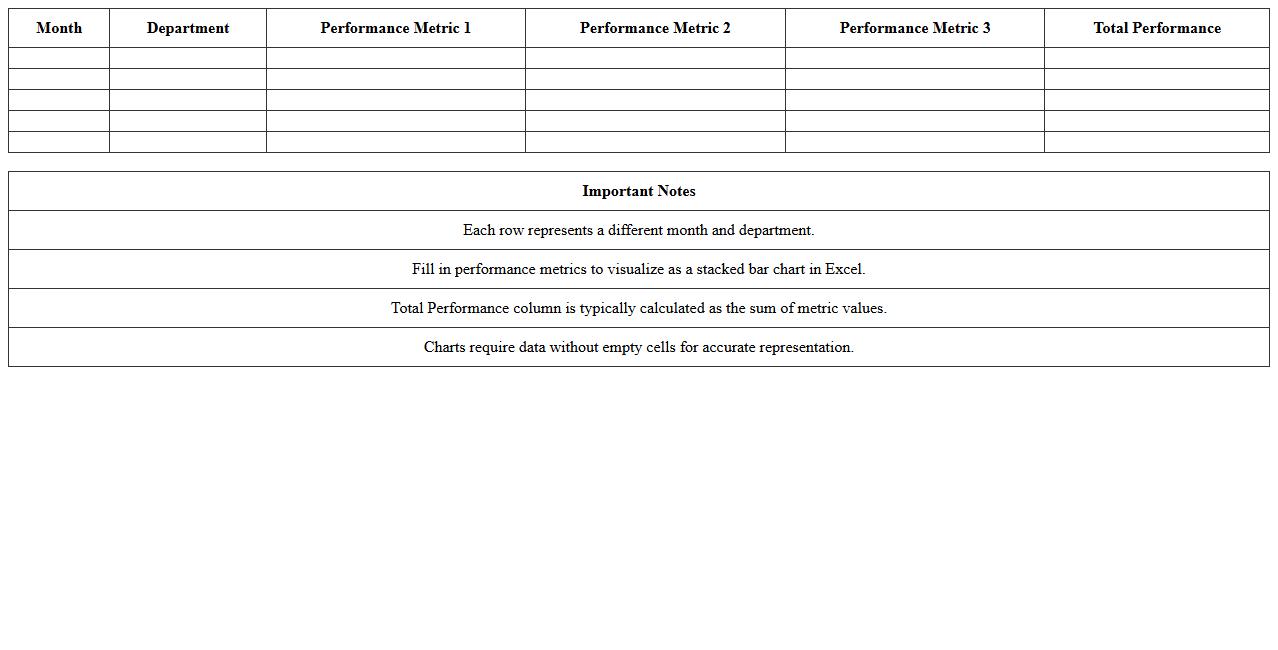
Monthly Department Performance Stacked Bar Chart Excel Template
The
Monthly Department Performance Stacked Bar Chart Excel Template document is a tool designed to visually represent and compare the performance metrics of various departments across multiple months. It helps organizations track progress, identify trends, and highlight areas needing improvement by stacking different performance indicators within each bar for a clear overview. This template streamlines data analysis and reporting, making it easier to make informed decisions and enhance operational efficiency.
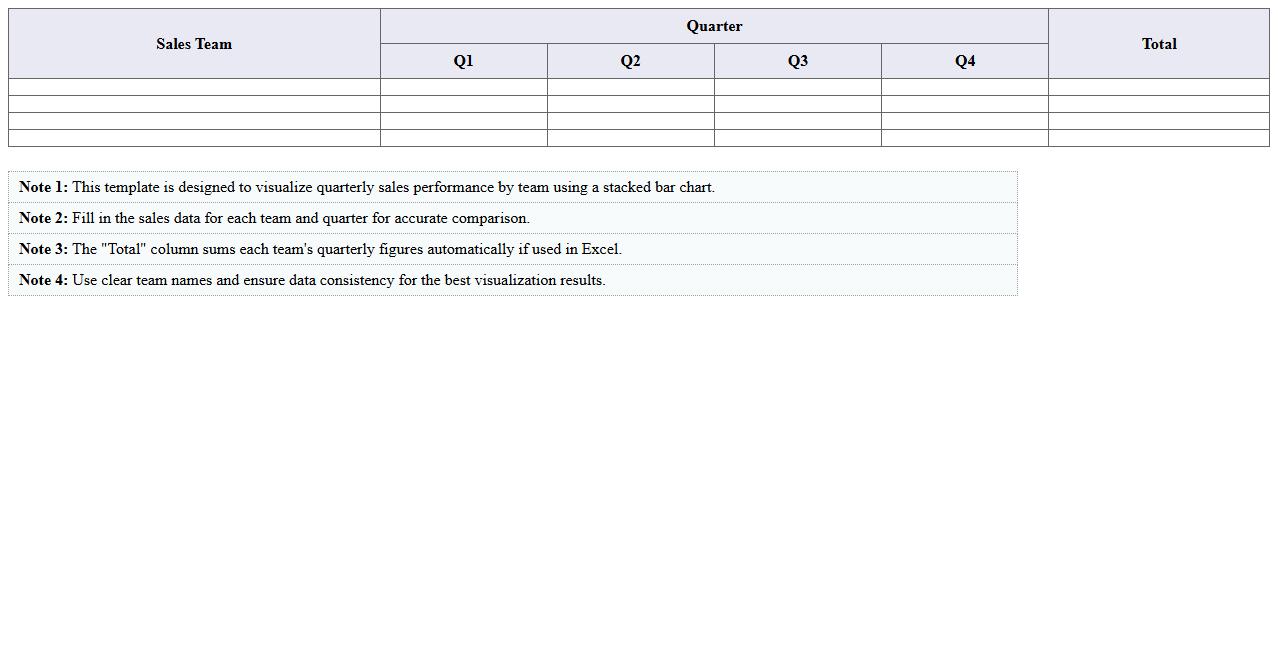
Sales Team Quarterly Comparison Stacked Bar Chart Template
The
Sales Team Quarterly Comparison Stacked Bar Chart Template document visually represents sales performance across different quarters, segmented by individual team members or products. It helps identify trends, compare contributions, and spot growth opportunities within the sales team over time. This template streamlines data analysis, enabling effective strategic planning and performance evaluation.
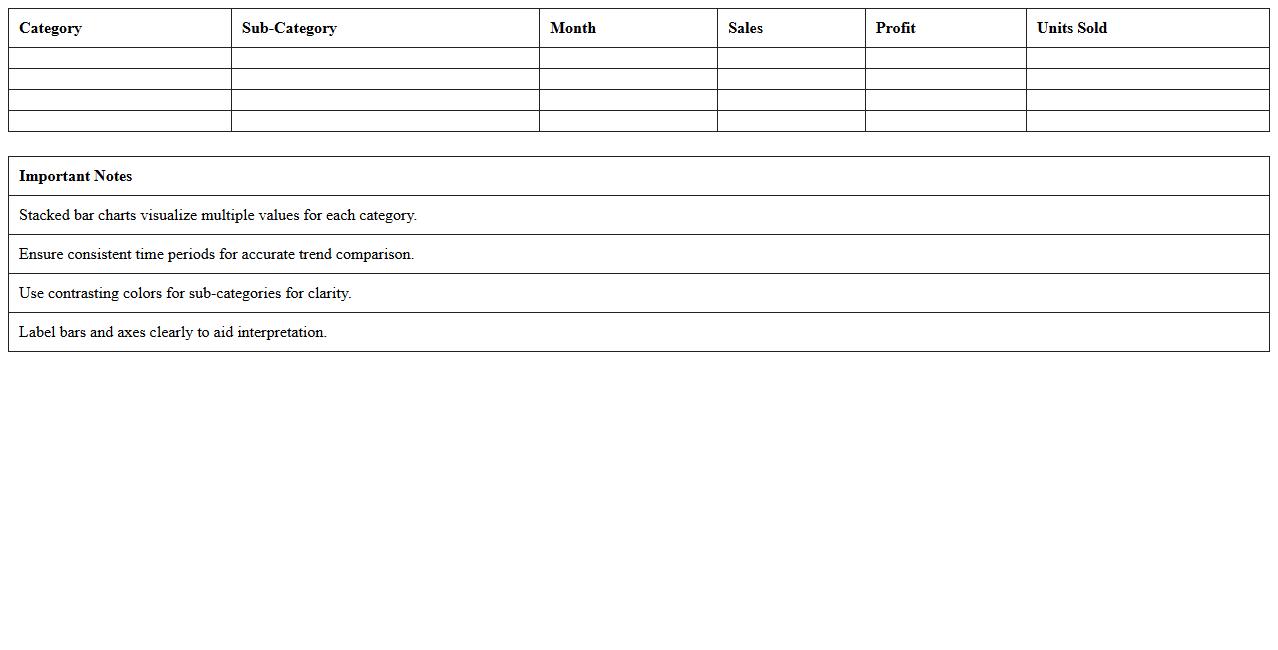
Product Category Performance Analysis Stacked Bar Chart Excel
A
Product Category Performance Analysis Stacked Bar Chart Excel document visually represents the sales or performance data of various product categories in a single, comprehensive chart. It helps businesses quickly compare multiple product categories across different time periods or regions, highlighting their contribution to total sales or profits. This tool is essential for identifying top-performing categories, spotting trends, and making data-driven decisions to optimize inventory and marketing strategies.
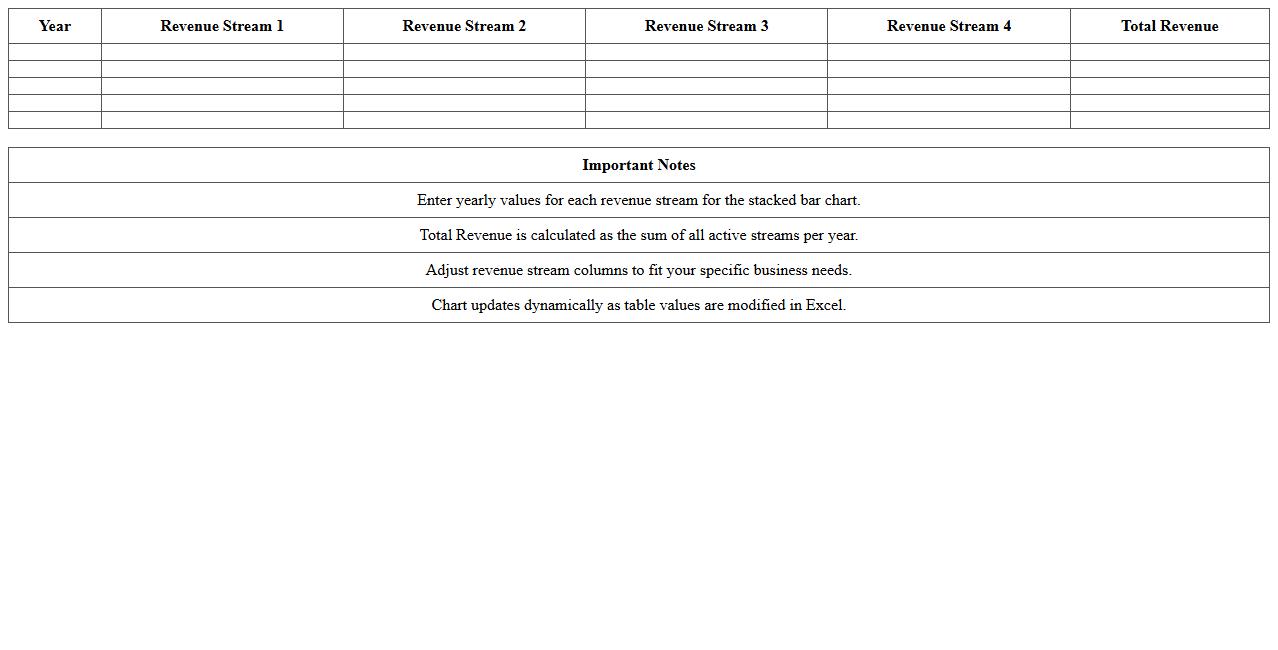
Yearly Revenue Streams Stacked Bar Chart Excel Template
The
Yearly Revenue Streams Stacked Bar Chart Excel Template document visualizes multiple revenue sources across different months or years, making it easier to compare and analyze income trends over time. It helps businesses identify which streams contribute most significantly to total revenue and track growth or decline in each category. This template streamlines financial reporting, supports data-driven decision-making, and enhances the clarity of revenue presentations for stakeholders.
Project Milestone Achievement Stacked Bar Chart Comparison Sheet
The
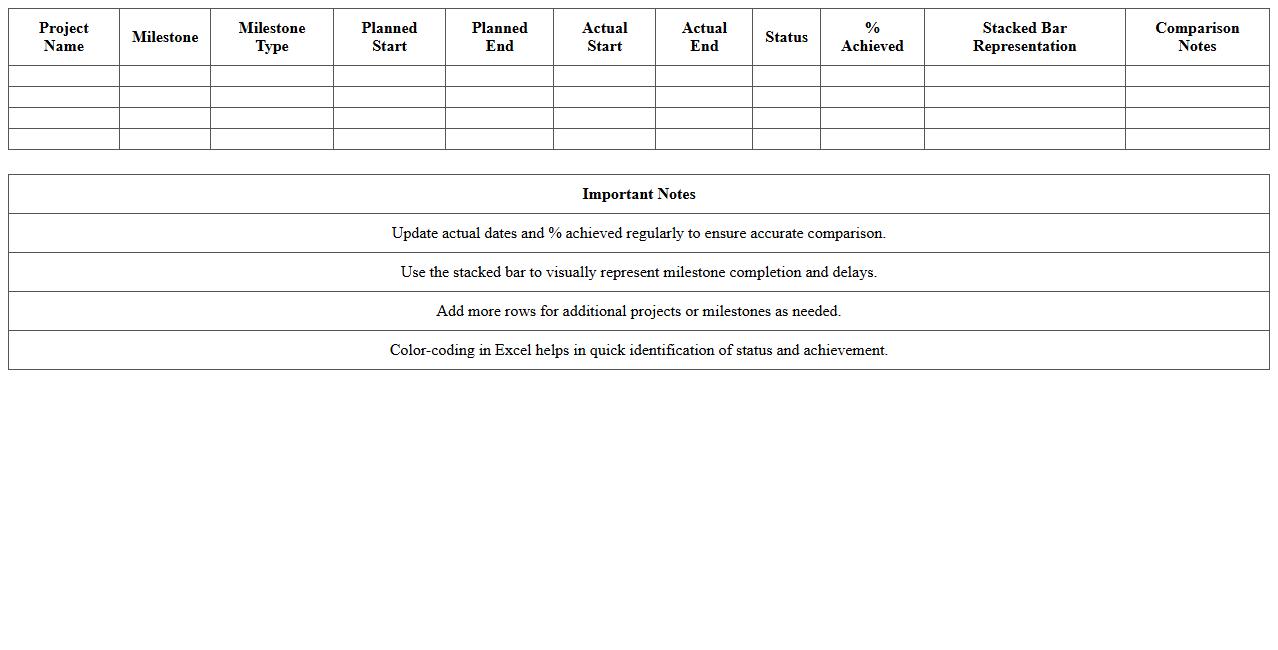
Project Milestone Achievement Stacked Bar Chart Comparison Sheet document visually represents the progress of multiple project milestones across different timeframes, enabling easy comparison of achievement levels. This tool helps project managers quickly identify completed, pending, and delayed tasks by combining data into stacked bars that show cumulative progress. By utilizing this sheet, teams can enhance planning accuracy, prioritize resource allocation, and improve communication on project status.
Employee Performance Metrics Stacked Bar Chart Excel Template
The
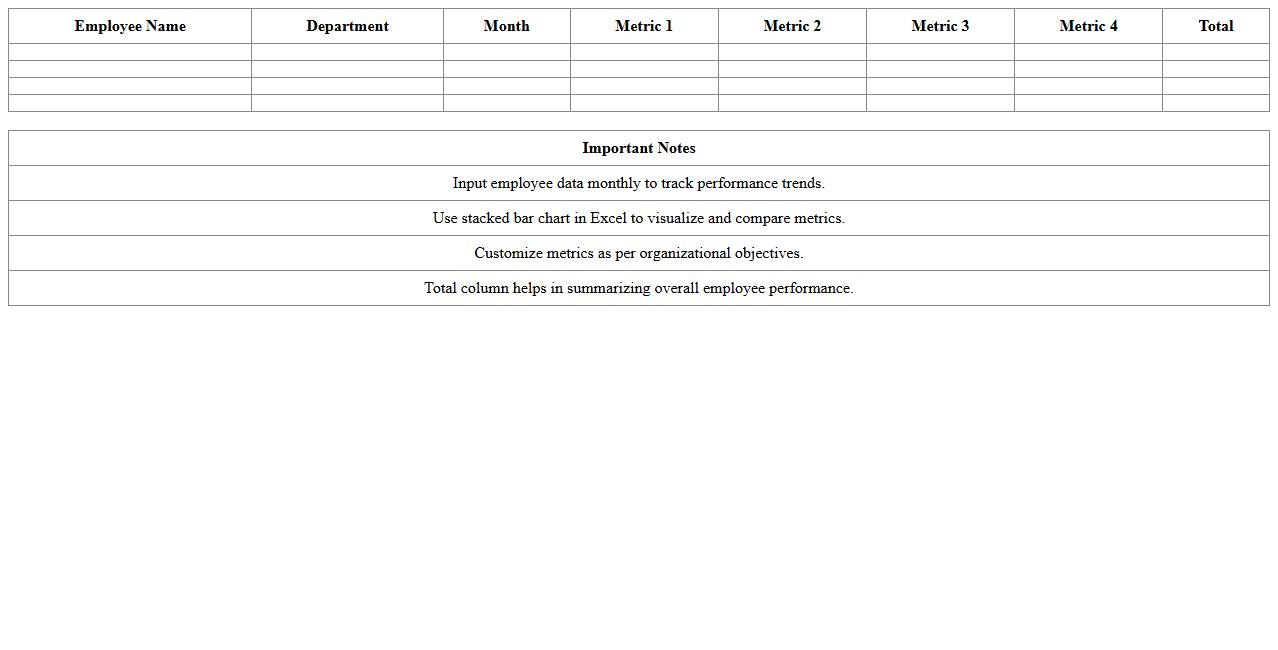
Employee Performance Metrics Stacked Bar Chart Excel Template is a powerful tool designed to visually represent multiple performance indicators across different employees in a single, consolidated chart. It enables managers to track and compare various metrics such as productivity, quality, and attendance in a clear, intuitive format, facilitating data-driven decision-making. This template enhances performance reviews, identifies trends, and supports targeted improvements in workforce management.
Regional Branch Performance Stacked Bar Chart Excel Template
The
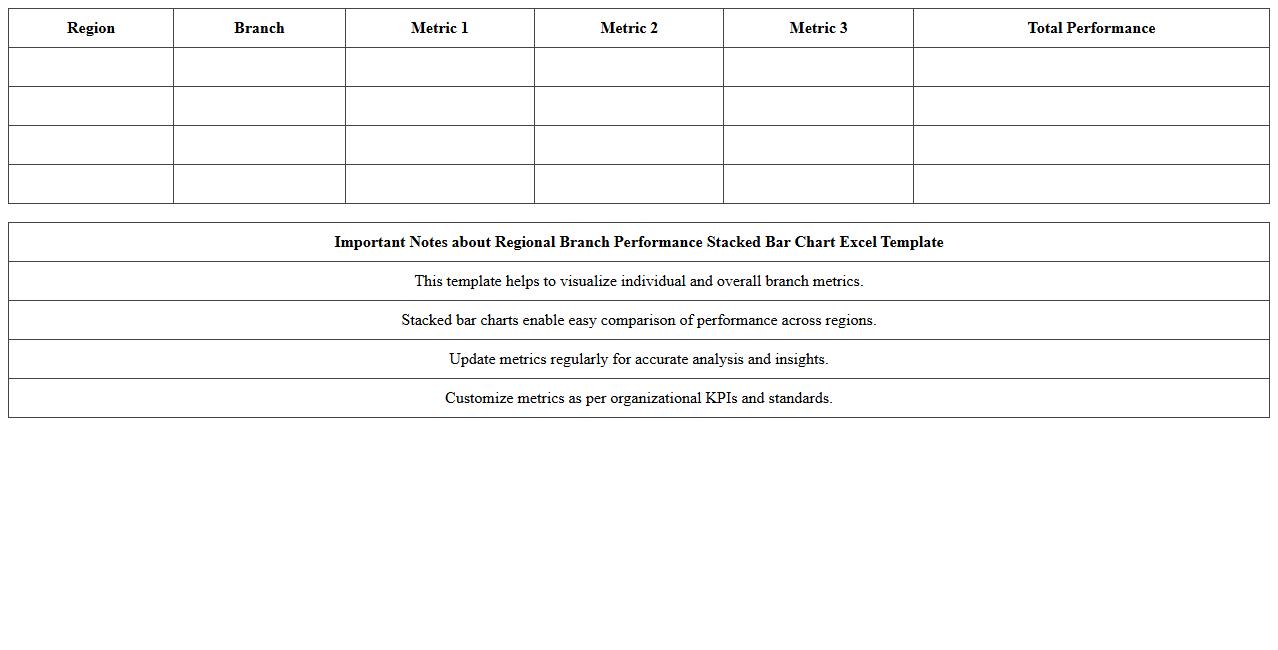
Regional Branch Performance Stacked Bar Chart Excel Template is a powerful tool designed to visually represent and compare the performance of multiple regional branches using stacked bar charts. It allows users to analyze key performance metrics such as sales, revenue, or customer engagement across different branches in a clear, consolidated format. This template improves decision-making by highlighting trends, identifying top-performing regions, and pinpointing areas that require improvement, enhancing overall business strategy and operational efficiency.
Financial KPI Tracking Stacked Bar Chart Excel Template
The
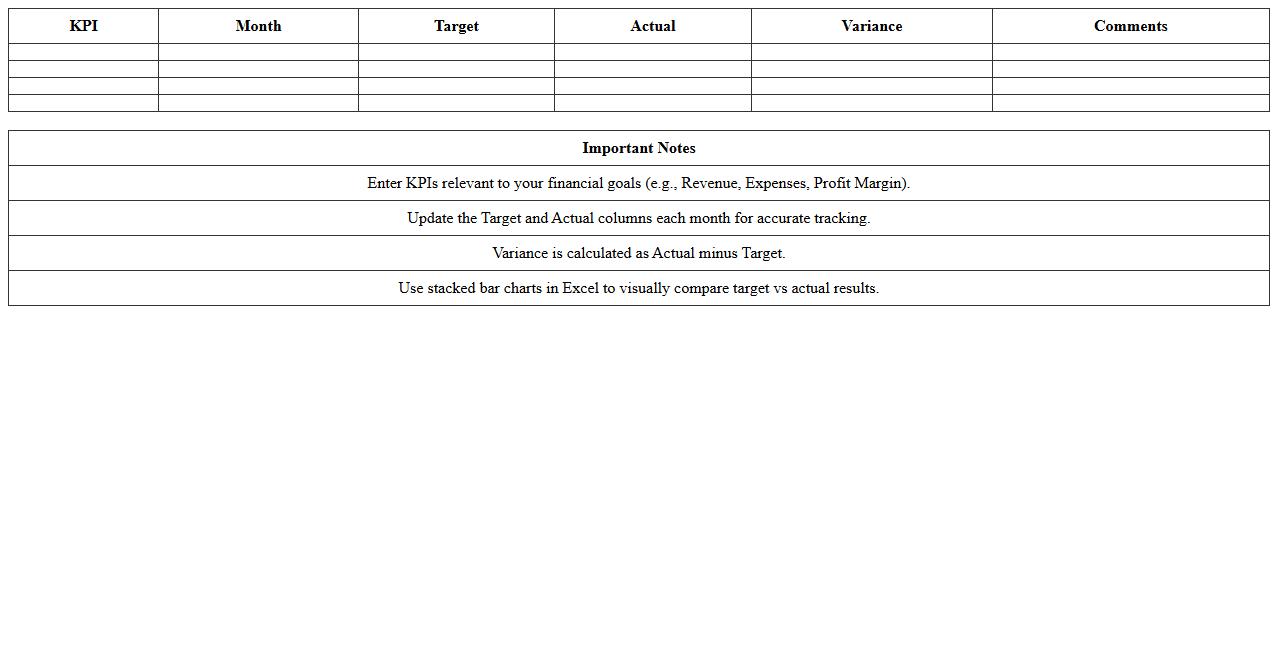
Financial KPI Tracking Stacked Bar Chart Excel Template document is a tool designed to visually represent multiple financial key performance indicators (KPIs) over time in a single stacked bar chart format. It enables businesses to track revenue streams, expenses, profit margins, and other crucial metrics simultaneously, facilitating comprehensive financial analysis and comparison. By providing clear, organized, and customizable data visualization, this template helps users quickly identify trends, set targets, and make informed decisions to improve financial performance.
Marketing Campaign Results Stacked Bar Chart Excel Template
The
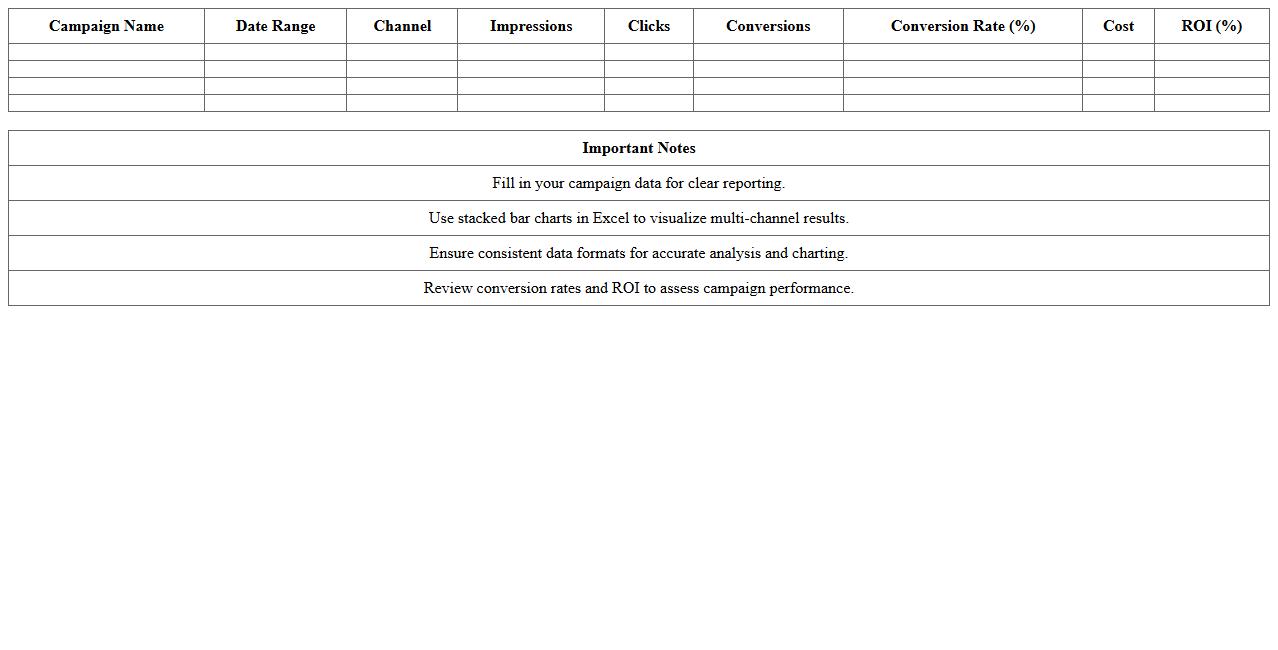
Marketing Campaign Results Stacked Bar Chart Excel Template document is a powerful tool designed to visually represent the performance metrics of multiple marketing campaigns in a single, easily interpretable chart. It allows users to compare key data points such as conversions, impressions, and ROI across different campaigns by stacking related values side by side, facilitating quick data-driven insights. This template is especially useful for marketers and analysts aiming to track campaign effectiveness, optimize budget allocation, and make informed strategic decisions.
Customer Satisfaction Score Comparison Stacked Bar Chart Excel
A
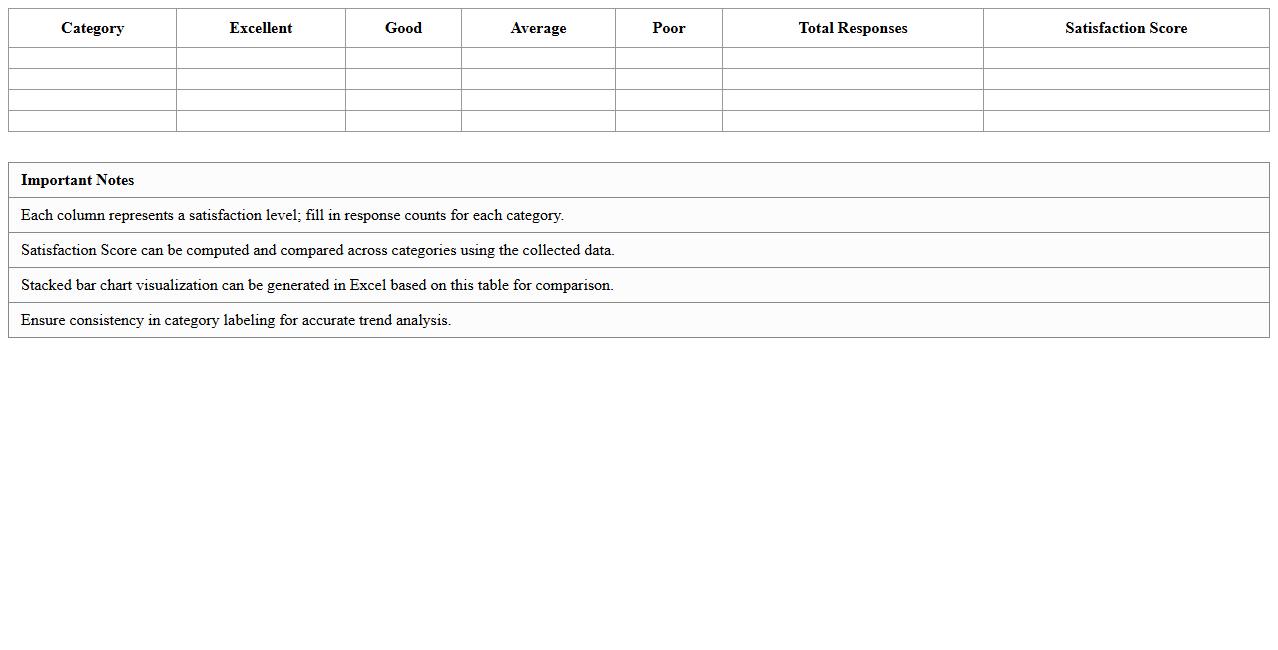
Customer Satisfaction Score Comparison Stacked Bar Chart Excel document visually represents the varied satisfaction levels of customers across multiple categories or time periods in a compact, easy-to-interpret format. This chart helps businesses quickly identify trends, benchmark performance, and highlight areas requiring improvement by stacking different satisfaction score segments within each bar. Using this visualization in Excel streamlines data analysis, making customer feedback actionable and supporting more informed decision-making processes.
How to group categories in a stacked bar chart for monthly document approvals in Excel?
To group categories in a stacked bar chart for monthly document approvals, first organize your data with months in rows and approval categories in columns. Insert the stacked bar chart by selecting your data and choosing the stacked bar option from the Insert tab. This structure automatically groups categories by month, providing a clear visual comparison.
Which Excel formula best summarizes performance data for stacked bar charts in correspondence tracking?
The SUMIFS formula is ideal for summarizing performance data as it allows conditional summing based on multiple criteria like date ranges and categories. By using SUMIFS, you can efficiently aggregate document counts for each category over specific periods. This formula enhances the accuracy and relevance of data displayed in stacked bar charts.
How can I add sub-category labels (e.g., letter types) in a stacked bar chart for document throughput?
To add sub-category labels, you should first ensure your data includes these letter types as separate series in the stacked bar chart dataset. Next, use the chart's data labels feature and customize it to show series names or categories. This enables viewers to distinguish between different sub-categories within each stacked segment.
What's the process to highlight overdue document letters in a stacked bar chart Excel performance dashboard?
Highlighting overdue document letters involves creating a conditional formatting rule or a helper column that flags overdue items in your dataset. Use this helper data to assign a distinct color in your stacked bar chart, emphasizing overdue status. This visual cue makes it easy to identify critical delays in your document workflow.
How to automate color coding for performance metrics in stacked bar charts tracking letter responses in Excel?
Automate color coding using Excel's conditional formatting combined with dynamic range references or VBA macros. Set rules that change bar segment colors based on performance thresholds, such as response times or approval rates. This automation ensures your stacked bar charts always reflect up-to-date performance metrics visually and effectively.
More Chart Excel Templates